All student personal local storage drives (J: drives) will
be disabled on January 31st, 2025. It is recommended
that users transfer any locally hosted data to OneDrive before this time.
After
this deadline, any data left on these drives will be inaccessible.
OneDrive is a Microsoft cloud storage service, which comes bundled with your
university Microsoft 365 student licensing.
Your OneDrive account already
exists and is linked to your USCA email address.
Your login credentials to
access OneDrive are the same as your university email account.
How to access OneDrive:
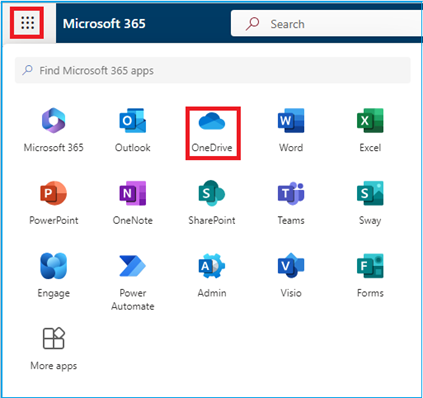
- OneDrive
can be accessed at https://www.office.com/
- With
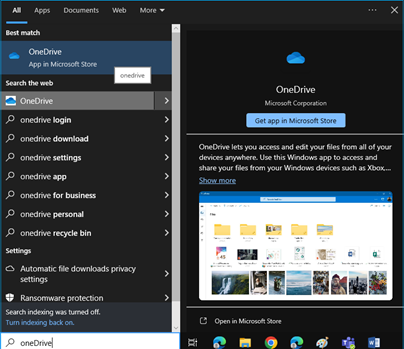
the Microsoft OneDrive app, available in the Microsoft Store, users can
quickly and easily access their files and folders.
- OneDrive
storage: 60 GB for students / 110 GB for faculty
To transfer your files from shared drive to OneDrive,
please follow the instructions below:
Files and Folders can be uploaded individually
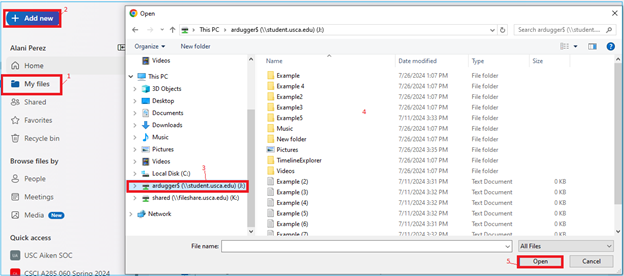
- In
OneDrive found on the left task bar, click the My files tab
- Click
the + Add new button at the top. A drop-down window will reveal the
upload options. Choose either the Files upload or Folder upload
option
- Once
file explorer opens, navigate to your local drive. (This PC >> your_local_drive)
- Select
what you would like to upload
- Click Open
Multiple files can be selected and uploaded at
once
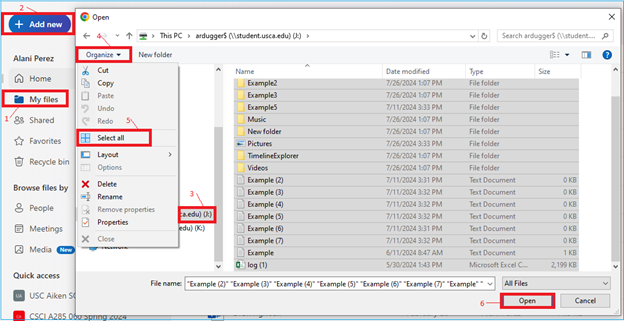
- In
OneDrive found on the left task bar, click the My files tab
- Click
the + Add new button at the top. A drop-down window will reveal the
upload options. Choose the Files upload option
- Once
file explorer opens, navigate to your local drive. (This PC >> your_local_drive)
- Click Organize,
located at the top left corner
- Next,
click Select all. (Even if this highlights everything, only
individual files will upload – not folders)
- Finally,
click Open
All files and folders can be moved into a single
folder for speed and ease when transferring to OneDrive- assuming everything
needs to be moved over:
First, outside of OneDrive, open file explorer

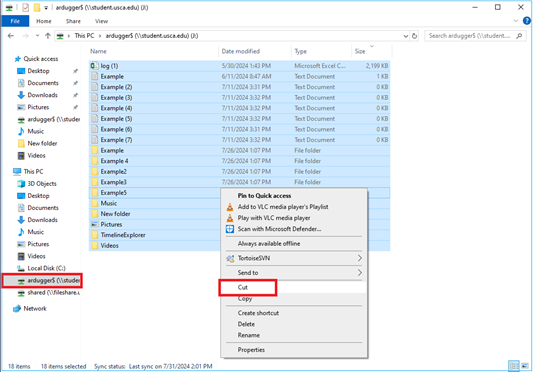
- Navigate
to your local drive. (This PC >> your_local_drive)
- Left
click + drag your mouse to highlight everything in your local drive
- Right
click the highlighted folders/files
- Select
Cut
A Windows Security message may pop up: Opening these
files might be harmful to your computer. Click OK. Select Cut.
- Off to
the right or down at the bottom, right click – New > Folder.
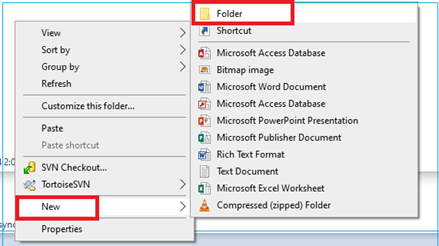
- Open
the folder you just created, right click and paste
- Now in
OneDrive, found on the left task bar, click the My files tab
- Click
the + Add new button at the top. A drop-down window will reveal the
upload options.
- Choose
the Folder upload option
- Once
file explorer opens, navigate to your local drive. (This PC >> your_local_drive)
- Finally,
select the New Folder you just created and click Open
If you have technical
issues, please contact the USC Aiken
Help Desk (http://help.usca.edu
803-641-3391 or [email protected])